
 Business Communication
  Blog
Blog  Customer Experience
  Leadership
  Marketing & Sales
  Nextiva News
  Productivity
  VoIP
VoIP 

Team communication tools make it easier to share ideas, plan projects, and stay updated in real time. And as companies look for smarter, more efficient ways to connect and collaborate, many are turning to AI to enhance how teams communicate. According to Nextiva’s CX Trends Report 2025, 53% of businesses have significantly invested in empowering employees to use AI.
The right tools can boost remote collaboration, reduce confusion, and help your teams get work done faster. When we reviewed the best options, we looked at key features like messaging, file sharing, video meetings, integrations, and ease of use.
We also considered how each collaboration software supports productivity, security, and scalability, so you can find the tool that best fits your team.
Here’s a quick overview of the top team communication software:
| Team communication tool | Best for | Standout features | Pricing | Main integrations | Ratings (G2 / Trustpilot) |
| Nextiva | AI-powered calling | Unified chat, voice, and video; AI receptionist; strong telephony | From $15/user/month | CRM, email, calendar, and contact center tools | 4.5/4.8 |
| Slack | Channel-based chat | Channels, threads, AI summaries, workflow automation | Free option; Paid from $4.38/user/month | Google Drive, Jira, Asana, Zoom, and 2,000+ apps | 4.5/2.3 |
| Microsoft Teams | Microsoft Office shops | Chat + meetings + file sharing; deep Office integration | From $4/user/month | Word, Excel, PowerPoint, SharePoint, and Outlook | 4.5/1.2 |
| Discord | Casual-style teams | Always-on voice, text channels, screen sharing | Free option; Paid from $2.99/month | Google Drive, Trello, Zapier, and several bots | NA/1.3 |
| Google Chat | All-in-one collaboration | Messaging + Meet + Docs in one workspace | From $7/user/month | Gmail, Drive, Calendar, Sheets, and Slides | 4.6/1.3 |
| Zoom | Video-heavy teams | HD meetings, AI Companion, team chat, whiteboards | Free option; Paid from $13.33/user/month | Slack, Outlook, Google Workspace, and CRM tools | 4.5/1.3 |
| Asana | Task and project management | Tasks, timelines, automation, dashboards | Free option; Paid from $10.99/user/month | Slack, Google Drive, Zoom, and Microsoft Teams | 4.5/1.3 |
1. Nextiva: Best for AI-Powered Communications
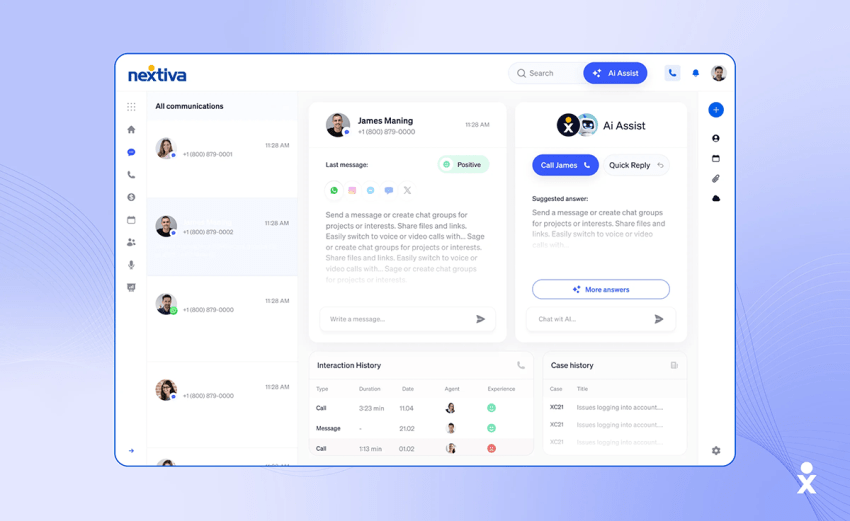
Nextiva is a unified communication platform that combines calling, messaging, video, and AI-powered automation in one place. It works well if you need a team messaging app that’s backed by strong business calling features.
Beyond customer calls, Nextiva also supports seamless internal communication. Teams can chat, share files, and hold video meetings within one dashboard, keeping everyone connected and reducing the need for multiple apps.
One standout feature is its AI receptionist, which handles incoming calls, routes them smartly using voice recognition, and can even book appointments via calendar integration.
It supports instant messaging for business, video conferencing, and integrates voice/SMS. You can use it as an employee communication app in which chat, calls, and contact center features are all housed in the same platform. This makes collaboration smoother, even when people are spread out.
Because Nextiva combines calls, SMS, video meetings, and real-time chat under one roof, it’s a solid pick if you want fewer tools, less switching, and seamless integration when working remotely or across departments. Integration Works, for example, uses Nextiva to connect its global workforce through unified voice and messaging, helping its employees communicate faster and improving collaboration across time zones.
Key features
Here are some of Nextiva’s core features that support its strengths as a team communication tool:
- Team chat: Get built-in messaging and file sharing within the VoIP system.
- Voice and video calls: Access HD calling with screen sharing and conferencing.
- Business SMS/MMS: Send and receive texts from your business number.
- Team-based SMS routing: Easily send direct messages to the right team automatically
- After-hours auto-replies: Send instant responses outside business hours.
- CRM and email integrations: Connect with tools like HubSpot and Outlook.
- Call routing and AI voicemail: Get smart call flows with voicemail transcription.
- Desktop and mobile app: Manage calls, chats, and meetings anywhere.
- Contact center tools: Use analytics, monitoring, and support for large teams.
Pricing
Nextiva’s pricing is tiered, and there are different plans for small businesses and enterprise setups:
- Core: $15 per user per month, billed annually.
- Engage: $25 per user per month.
- Power Suite CX: $75 per user per month for advanced contact-center and CX-focused features.
- Enterprise plans: Essential plan starts at $75 per user per month with custom pricing for Professional and Premium plans.
Ratings and reviews
Users often praise the product’s reliability, broad feature-set, and helpful customer support. Some reviews highlight that setup and onboarding are smooth and that calls and messaging work well for hybrid teams.
| Pros | Cons |
| Unified voice, chat, and video in one app Strong AI receptionist and call-routing automation Good ratings and trust scores Scales from small teams to contact-center-style workflows | Enterprise plans can get pricey Learning curve for configuring IVR and routing rules |
2. Slack: Best for Channel-Based Chat
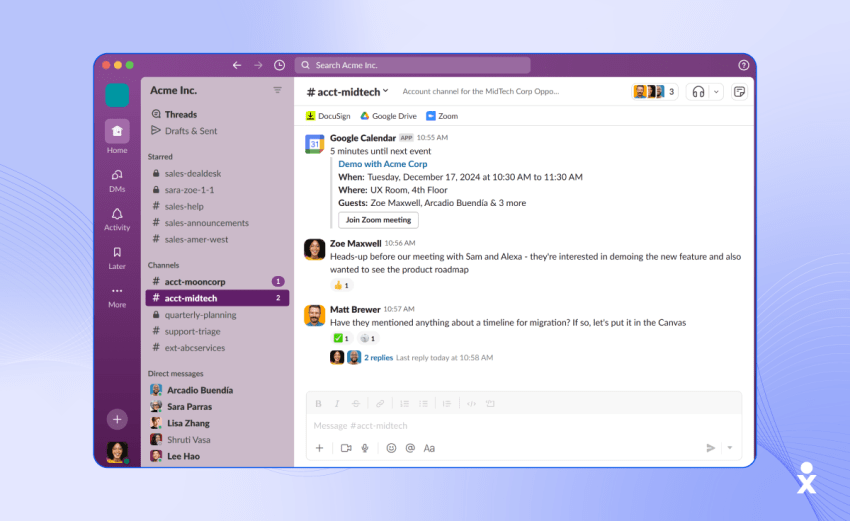
Slack is a popular business communication software that puts all team conversations in one place. It’s built around channels for different projects, teams, and topics, making it easier to find the right discussion without digging through emails.
And since Slack supports file sharing and voice and video calls — and lets you integrate many external tools — it works well for small and large teams that need a team communication app that keeps everything visible and organized.
It’s also strong on team productivity, especially for teams that collaborate often throughout the day. Slack helps to reduce delays with features including threads, real-time messaging, and integrations with other tools such as Google Drive and Jira. It works both for remote teams and office-based teams that want to reduce email overload and speed up their feedback loops.
Key features
Here are some of Slack’s main features that make it a top choice:
- Real-time messaging: Chat instantly in channels or direct messages.
- Voice and video calls: Use Huddles for quick calls with screen sharing.
- Threaded replies: Keep conversations organized and easy to follow.
- Integrations: Connect with thousands of tools like Google Drive, Trello, and Asana.
- AI-powered features: Get message summaries and workflow suggestions in paid plans.
- Slack Connect: Collaborate securely with external clients or partners.
Pricing
Slack offers a few tiers, including a free forever plan and paid plans that scale with what you need:
- Free
- Pro: $4.38 per user per month, billed annually.
- Business+: $9 per user per month.
- Enterprise+: Custom pricing for bigger organizations.
Ratings and reviews
On G2, Slack has an average rating of about 4.5 out of 5 from tens of thousands of reviews. Users often praise its ease of use, integrations, and how it keeps things organized. On Trustpilot, reviews are mixed. While many users say it helps reduce email clutter and improve collaboration, there are complaints about customer support and pricing.
| Pros | Cons |
| Channels keep conversations organized by topic Integrates with many tools Strong support for both async and real-time collaboration | Notifications can become overwhelming The free plan has limits on message history and features Some users report glitches and usability issues after updates |
3. Microsoft Teams: Best for Microsoft Office Shops
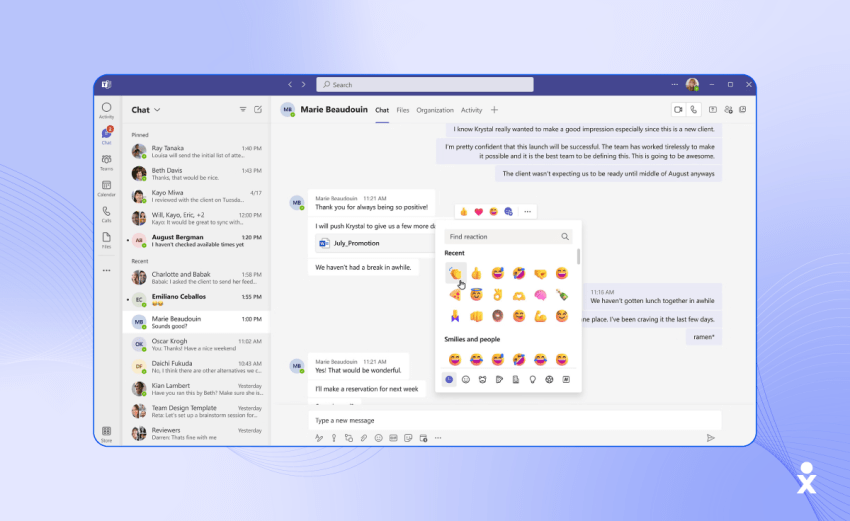
Microsoft Teams brings chat, video calls, file sharing, and meetings together in one app that ties in with Office tools like Word, Excel, and PowerPoint. It works really well if your organization already uses Microsoft 365, because Teams feels like part of the same system.
As a team communication app, it helps reduce the number of places you have to switch just to talk, share documents, and run meetings. It’s also a strong choice for remote work solutions, especially for teams that need both synchronous and asynchronous communication. You can chat or message instantly, but also collaborate on documents at the same time.
And because it’s deeply woven into Microsoft’s ecosystem, it avoids many friction points when you’re working across email, calendar, storage, and team workflows. That makes Teams more than just a video chat or messaging tool — it becomes your hub for work.
Key features
Here are some of Microsoft Teams’ most useful functions that earn it a spot among the best:
- Persistent chat channels: Organize conversations by team or project with direct messaging.
- Audio and video meetings: Host calls with screen sharing, recording, and shared notes.
- File collaboration: Work on documents in real time via SharePoint and OneDrive.
- Built-in calendar: Schedule and manage meetings through Outlook integration.
- Guest access: Communicate securely with clients or external partners.
- Apps and integrations: Add bots, tabs, and workflows to customize your workspace.
- Security and compliance: Get enterprise-grade controls for data protection and privacy.
Pricing
Microsoft offers Teams in different packages depending on business size and your existing Microsoft 365 subscriptions:
- Teams Essentials: $4 per user per month, billed annually.
- Microsoft 365 Business Basic: $6 per user per month, billed annually.
- Microsoft 365 Business Standard: $12.50 per user per month, billed annually.
Be sure to check what you already have in Microsoft 365, because you may already have access to parts of Teams through your current plan.
Ratings and reviews
On G2, Microsoft Teams has mixed feedback. Many users appreciate its deep integrations and richness of features, but some report performance issues as well as a cluttered interface and inconsistent notifications. On Trustpilot, people say that they find Teams complex and difficult to manage. It works well if set up right; less so if your administrator hasn’t fine-tuned it.
| Pros | Cons |
| Tight integration with Microsoft 365 apps Rich feature set for meetings, chat, files, and scheduling in one place Scales from small teams to enterprise workflows | Can feel complex to set up and manage for new users Performance issues reported by some users on older hardware Interface updates sometimes confuse long-time users |
4. Discord: Best for Casual-style Teams
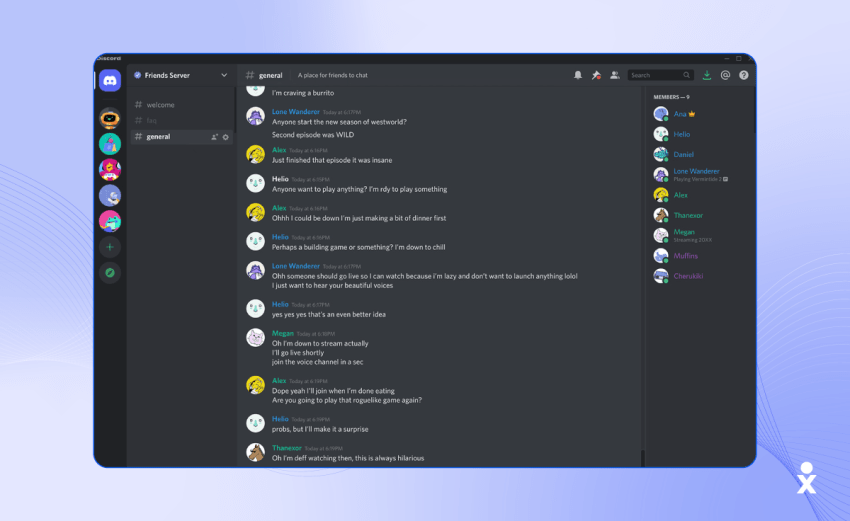
Discord is often thought of as a social or gaming chat tool, but it works as a team communication app for teams that want real-time voice and text chat, flexible channels, and low-friction communication.
Its interface supports voice channels that are always live, as well as text channels and direct messages. If your team is less formal and wants fast collaboration rather than official workflows, Discord can fit nicely.
It’s also an option among remote work solutions, especially when you want high flexibility, low-lag voice or video, and an informal style. While it’s not built specifically for enterprises, many creators, startups, and smaller tech teams use Discord to share quick updates, brainstorm in voice rooms, or message instantly without switching tools.
Key features
Here’s what Discord offers that makes it useful for virtual team communication:
- Voice channels: Join ongoing conversations without needing to call or schedule.
- Text channels and DMs: Organize chats by topic or project for easy access.
- Screen sharing and video calls: Collaborate visually within any channel.
- User roles and permissions: Control who can access or manage each channel.
- Rich media sharing: Share files, images, links, and embeds seamlessly.
- Cross-platform apps: Stay connected on desktop, mobile, or web.
Pricing
Discord is free to use for many core features. If you want more advanced perks, you can pay for Nitro:
- Nitro Basic: $2.99 per month for select features.
- Nitro (full): Cost varies based on your country.
Some server-boosting or special features may cost extra depending on your server settings.
Ratings and reviews
On Trustpilot, Discord reviews are mixed. Many users praise its customer service but complain about bugs and lag. On G2, there are discussions noting that Discord lacks some enterprise-grade controls compared to traditional business messaging apps.
| Pros | Cons |
| Always-on voice and flexible chat channelsFree plan covers most basic messaging and voice featuresEasy to spin up servers for projects or interest groups | Less suited for formal workflowsLimited admin/governance features for large or regulated businessesCan feel unstructured as your team scales |
5. Google Chat (via Google Workspace): Best for All-in-One Collaboration
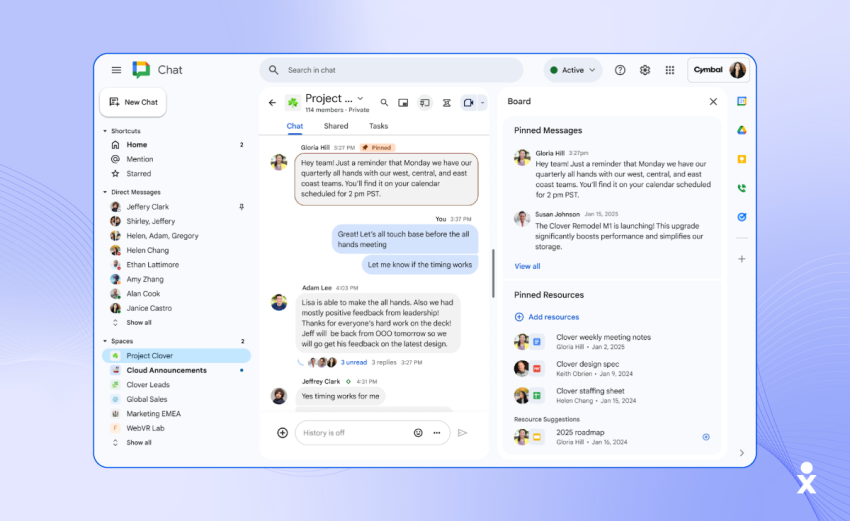
Google Chat is part of Google Workspace, which puts messaging side by side with shared Docs, storage, email, and video conferencing.
If your team already uses Gmail, Drive, and Calendar, then Chat becomes your natural team communication app — you don’t need to bolt on something new. Chats, rooms (spaces), and threaded conversations live right alongside your documents, making collaboration smoother.It works well as one of the remote work solutions because you can switch between chatting, editing Docs/Sheets in real time, or launching a Meet call without leaving the Google ecosystem. For teams that use Google tools daily, it’s more seamless than managing several separate apps.
Key features
Google Chat/Workspace includes features that support messaging, file sharing, and meetings in one place. Some highlights:
- Chat rooms (Spaces): Create topic-based spaces with direct messages for teams and projects.
- Google Docs integration: Collaborate on Docs, Sheets, and Slides without leaving the chat.
- Built-in Google Meet: Start audio or video calls directly from your workspace.
- Smart notifications: Stay updated with alerts linked to your Calendar and Gmail.
- Admin controls: Manage permissions and security across your organization.
- AI-powered tools: Get smart suggestions, summaries, and automated responses.
Pricing
Google Workspace offers tiered plans for businesses:
- Starter: $7 per user per month.
- Standard: $14 per user per month.
- Plus: $22 per user per month.
- Enterprise Plus: $35 per user per month.
Ratings and reviews
On G2, Google Workspace holds a rating of about 4.6 out of 5 across thousands of reviews. Users often praise how all its tools just work together. Some feedback on Trustpilot notes that while Google Workspace is intuitive and great for real-time collaboration, it can lead to data loss.
| Pros | Cons |
| Easy collaboration on documents in real time alongside chatReliable chat, meeting, and file sharing in one ecosystemStrong security and compliance via Google’s infrastructure | Storage limits or permissions settings can get confusing as teams growAdvanced admin or security setup may require trainingFewer built-in task-oriented features compared to dedicated project tools |
6. Zoom: Best for Video-Heavy Teams
Zoom was known first for video conferencing, but its newer offerings bundle chat, scheduling, file sharing, and AI-powered tools under one roof. It works well if meetings, webinars, whiteboarding, and real-time collaboration are core to your workflow.
As one of the remote work solutions, Zoom gives you high-quality video/audio and easy access, plus tools around chat and productivity that support teams working across time zones or locations.
It also fits into the business messaging apps space because Zoom isn’t just for calls anymore — its Workplace bundle includes chat, AI-assisted notes, doc-like sharing, and scheduling. This makes it more than a meeting app; it becomes a hub for collaboration before, during, and after meetings.

Key features
Here are some standout features that make Zoom a solid team communication app:
- HD video meetings: Host clear, reliable video calls with breakout rooms and screen sharing.
- Team chat: Send group messages and share files through Zoom Team Chat.
- AI Companion: Get meeting summaries, action items, and smart suggestions automatically.
- Whiteboarding and docs: Collaborate visually and take shared notes in real time.
- Calendar and scheduling: Plan and join meetings with built-in integrations.
- Webinars and large events: Run professional virtual sessions for bigger audiences.
Pricing
Zoom Workplace offers a free plan and multiple paid plans:
- Basic: Free, limited meeting duration and features.
- Pro (Workplace Pro): $13.33 per user per month, billed annually.
- Business: $18.33 per user per month, billed annually.
- Enterprise: Custom pricing for larger organizations.
Ratings and reviews
Users say Zoom is reliable for video calls and meetings, and that its interface is familiar and easy for many people. But complaints often mention poor customer-support interactions, difficulty with cancellations or billing changes, and frustration when features require upgrading plans.
| Pros | Cons |
| Excellent video quality and meeting tools Strong AI-powered features Easy for external guests to join meetings without heavy setup | Prices rise quickly for advanced plans Trustpilot reviews flag issues with support and billing Some features, like event and webinar add-ons, cost extra or require higher-tier plans |
7. Asana: Best for Task and Project Management
Asana is built to help teams break down big projects into smaller tasks, track deadlines, and see who’s doing what.
It’s less about chat and more about keeping work organized, but it still plays a role as a business messaging app when you want comments, notifications, and status updates all tied to your tasks. Asana works best if your team needs structure rather than casual talk.
It also serves well as part of your remote work solutions if you’re juggling multiple projects, hand-offs, approvals, and dependencies. While it isn’t a pure chat app, its comment threads, notifications, and integrations mean communication happens through the same tool where the work lives. That reduces missed messages about deliverables.

Key features
These are some of the features that make Asana useful for organizing work:
- Task management: Create tasks with due dates, assignees, dependencies, and subtasks.
- Project views: Switch between list, board, and timeline (Gantt) views.
- Automation rules: Trigger actions like status updates or task movements automatically.
- Goals and portfolios: Track overall progress and team objectives in one view.
- Task comments: Add notes, attachments, and file links for clear context.
- Integrations: Connect with Slack, email, cloud storage, and calendar tools.
- Reports and dashboards: Monitor performance and project status at a glance.
Pricing
Asana has a few pricing plans depending on what you need:
- Personal: Free for small teams, limited to up to 10 users.
- Starter: $10.99 per user per month, billed annually.
- Advanced: $24.99 per user per month.
- Enterprise: Custom quotes.
Ratings and reviews
On G2, Asana has a rating of 4.5 out of 5 from many reviewers. Users often say it keeps projects organized, makes accountability clearer, and simplifies workflows across multiple teams. On Trustpilot, reviewers raise concerns about support quality and billing issues.
| Pros | Cons |
| Very good for structuring projects and tracking tasks Useful automations and dependency tracking Strong integrations with other apps | Can feel overwhelming when handling many large projects Customer service feedback has complaints Free plan is quite limited for anything beyond basic tracking |
How To Choose a Team Communication Tool
Whether you’re managing a small startup or a global team, the best digital teamwork apps help you cut through noise, boost productivity, and strengthen cross-functional collaboration across departments.
Here’s what you should consider when picking a tool:
- Assess your team’s needs: Identify what matters most — instant messaging, video calls, task tracking, or file sharing. Your tool should fit your daily workflow, not force a new one.
- Evaluate core features: Look for must-haves like chat, channels, file sharing, and mobile access. Don’t get distracted by features you’ll never use.
- Consider integration capabilities: Choose a platform that connects smoothly with tools your team already uses — like CRM, calendars, and project management software.
- Check scalability: Make sure the tool can grow with your team without a massive price jump or feature restrictions.
- Review security and compliance: Teams handling confidential or regulated information should prioritize strict privacy and compliance standards.
- Test user experience: A clean, intuitive interface saves time and ensures faster adoption. If your team dreads using it, it’s not the right tool.
- Create a communications plan: Define when to use chat, calls, or meetings. The right tool will support your plan.
![How to Create a Communication Plan [+ Template]](https://www.nextiva.com/cdn-cgi/image/width=850,height=478,fit=cover,gravity=auto,format=auto/blog/wp-content/uploads/sites/10/2019/09/communication-plan-hero-1.jpg?resize=768,432)
Grow With Nextiva’s Team Communication Solution
As business communication trends shift toward unified, AI-powered systems, Nextiva stands out as an all-in-one platform that connects messages, calls, and video meetings in one place. Our collaboration tools help your teams stay organized and productive without juggling multiple apps.
Built for growing teams, Nextiva’s team collaboration software combines chat, voice, and video tools with smart automation features. As one of the leading enterprise communication platforms, it helps you simplify teamwork, improve response times, and make every conversation more meaningful.
Book a free demo today to see how Nextiva can streamline your team communication and help your business work smarter.
Team Communication FAQ
Effective communication keeps everyone on the same page. It reduces misunderstandings, builds trust, and helps teams make faster, smarter decisions.
Start by identifying your team’s size, workflow, and priorities. Then pick a tool that offers the right mix of messaging, video, and integration features to support those needs.
AI helps automate routine tasks like scheduling, summarizing meetings, and routing messages. This saves time and lets your teams focus on meaningful work instead of manual coordination.
Most tools connect easily with apps like Google Workspace, Slack, or CRM systems. This lets teams share data, sync calendars, and manage projects from a single platform.
Yes, modern communication tools are built for flexible work environments, offering video calls, group chats, and shared workspaces that keep teams connected anywhere.